Operating Systems
Ubuntu

In this chapter, we will guide you through installing Ubuntu 22.04 LTS on the LattePanda Iota powered by the Intel Processor N150.
✅ Preparations
- Empty USB Flash Drive (8 GB or larger)
- 💿 Ubuntu 22.04 LTS Desktop ISO (64-bit recommended)
⚙️ Installation Steps
-
Download Ubuntu 22.04 LTS ISO
Visit Ubuntu Releases and download the 64-bit Desktop image. -
Create Bootable USB Drive
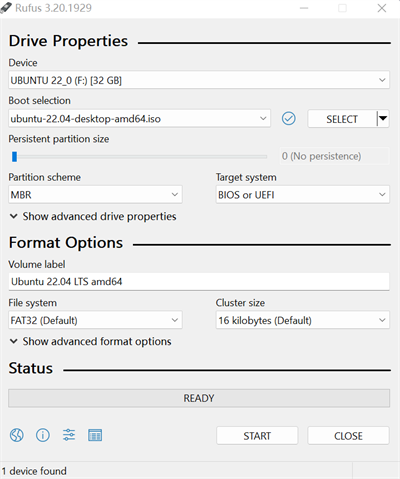
We recommend using Rufus (Windows) or BalenaEtcher (cross-platform) to flash the ISO.- Insert your USB drive.
- Select the downloaded Ubuntu ISO.
- Click Start to create the bootable media.
-
Boot from USB on LattePanda Iota
- Insert the USB drive into your Iota.
- Power on the board.
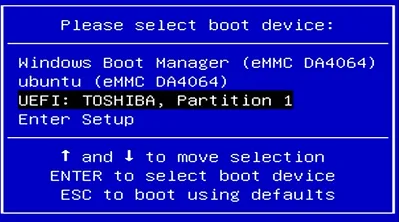
- Immediately and repeatedly press F7 to enter the Boot Device Selection Menu.
-
Select USB Boot Device
Use Up / Down to highlight your USB drive, then press Enter. -
Start Ubuntu Installer
- You’ll see the GRUB boot menu. Select
Try or Install Ubuntu→ then double-clickInstall Ubuntu.
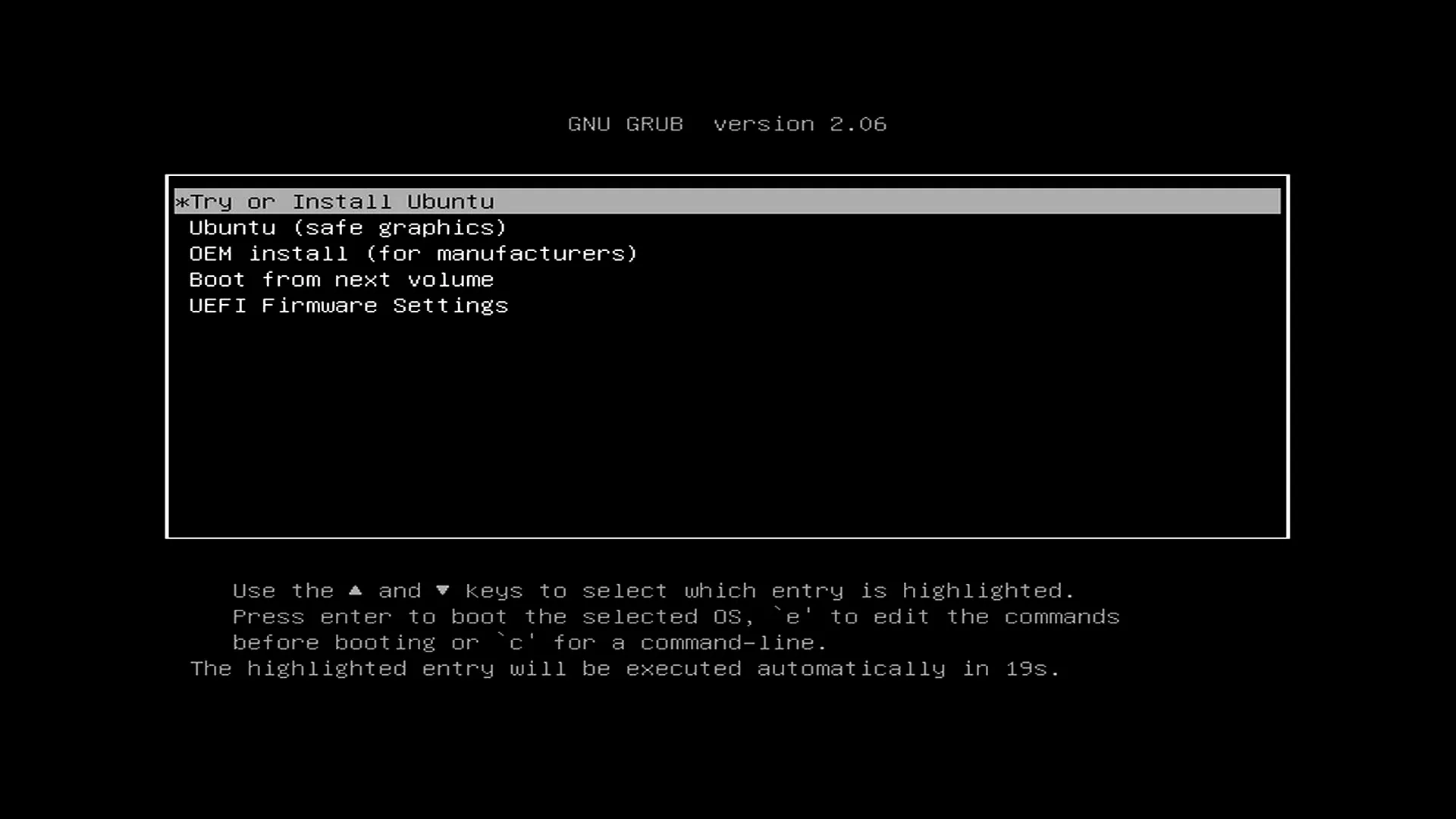
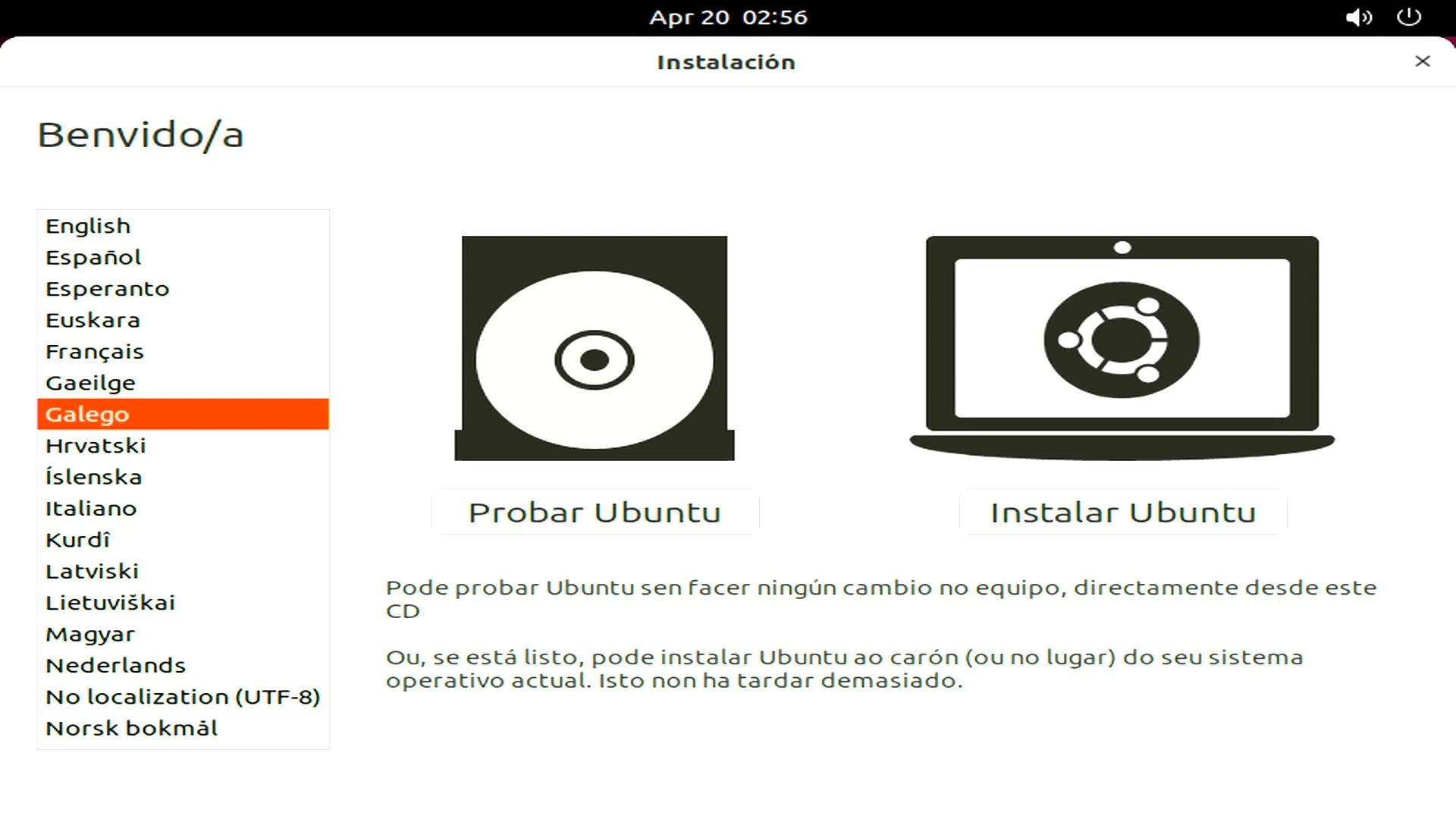
- You’ll see the GRUB boot menu. Select
-
Configure Installation Settings
- Choose your language → Continue.
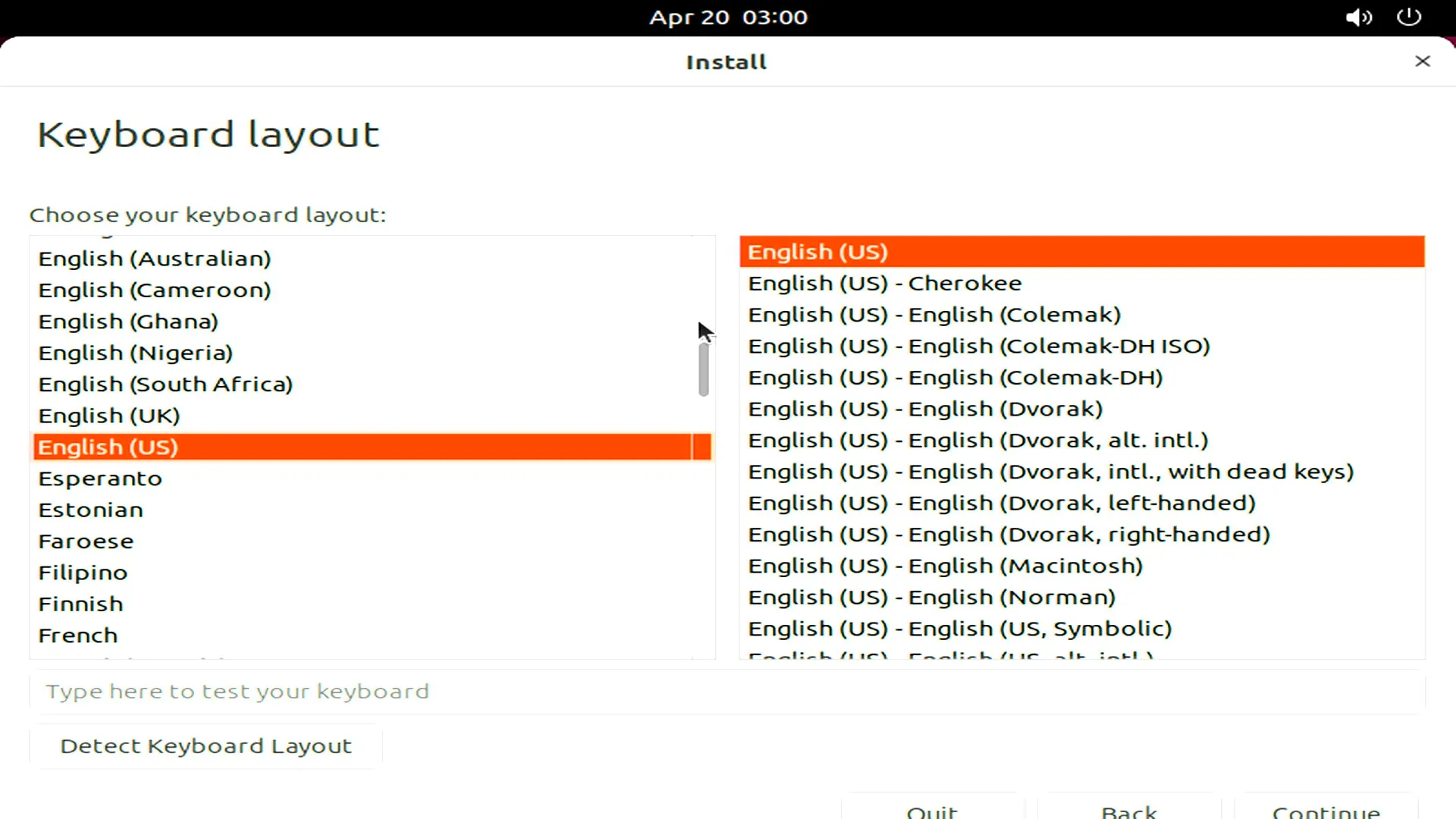
- Select keyboard layout → Continue.
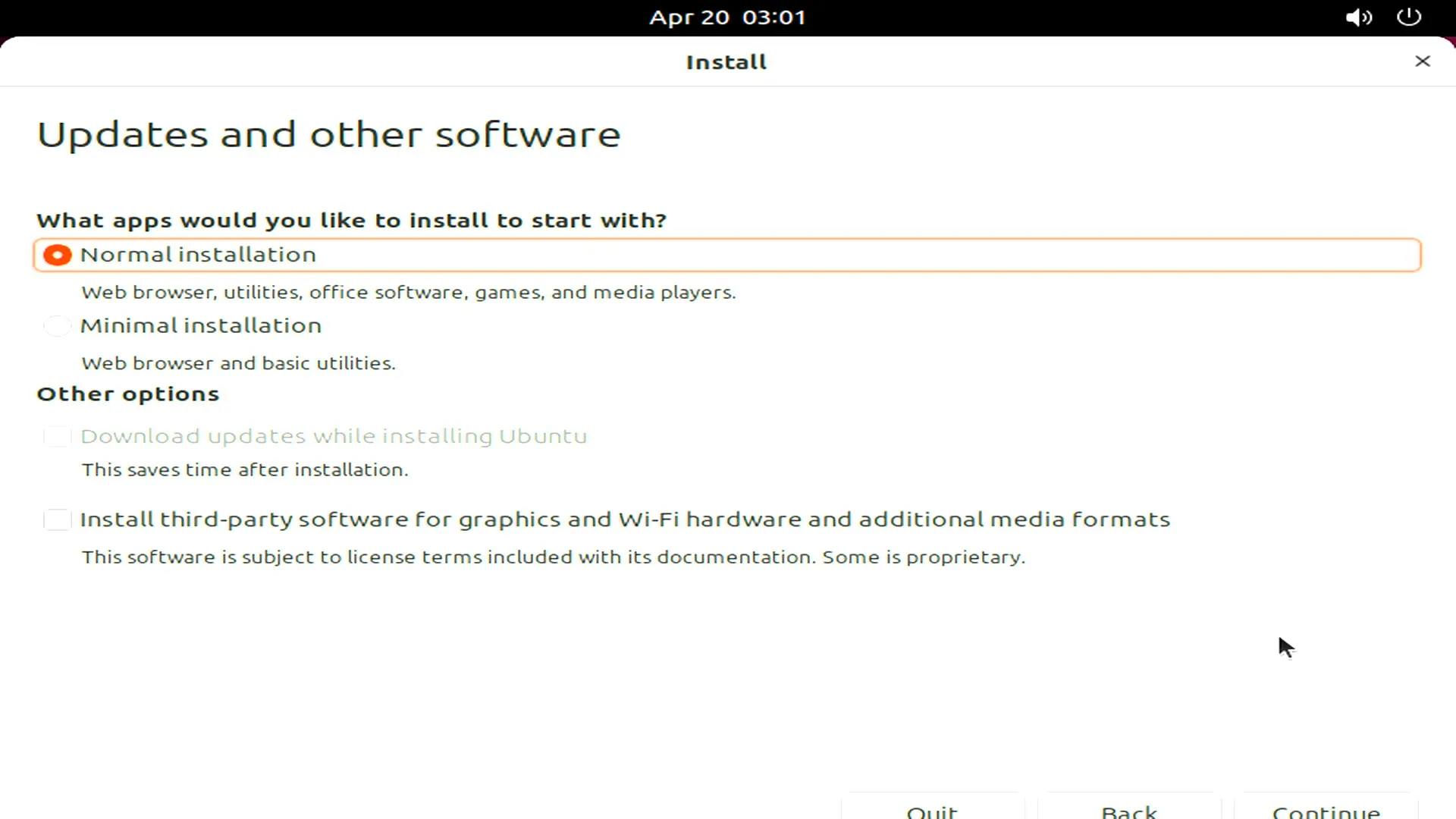
- Choose whether to install third-party software & updates (optional).
-
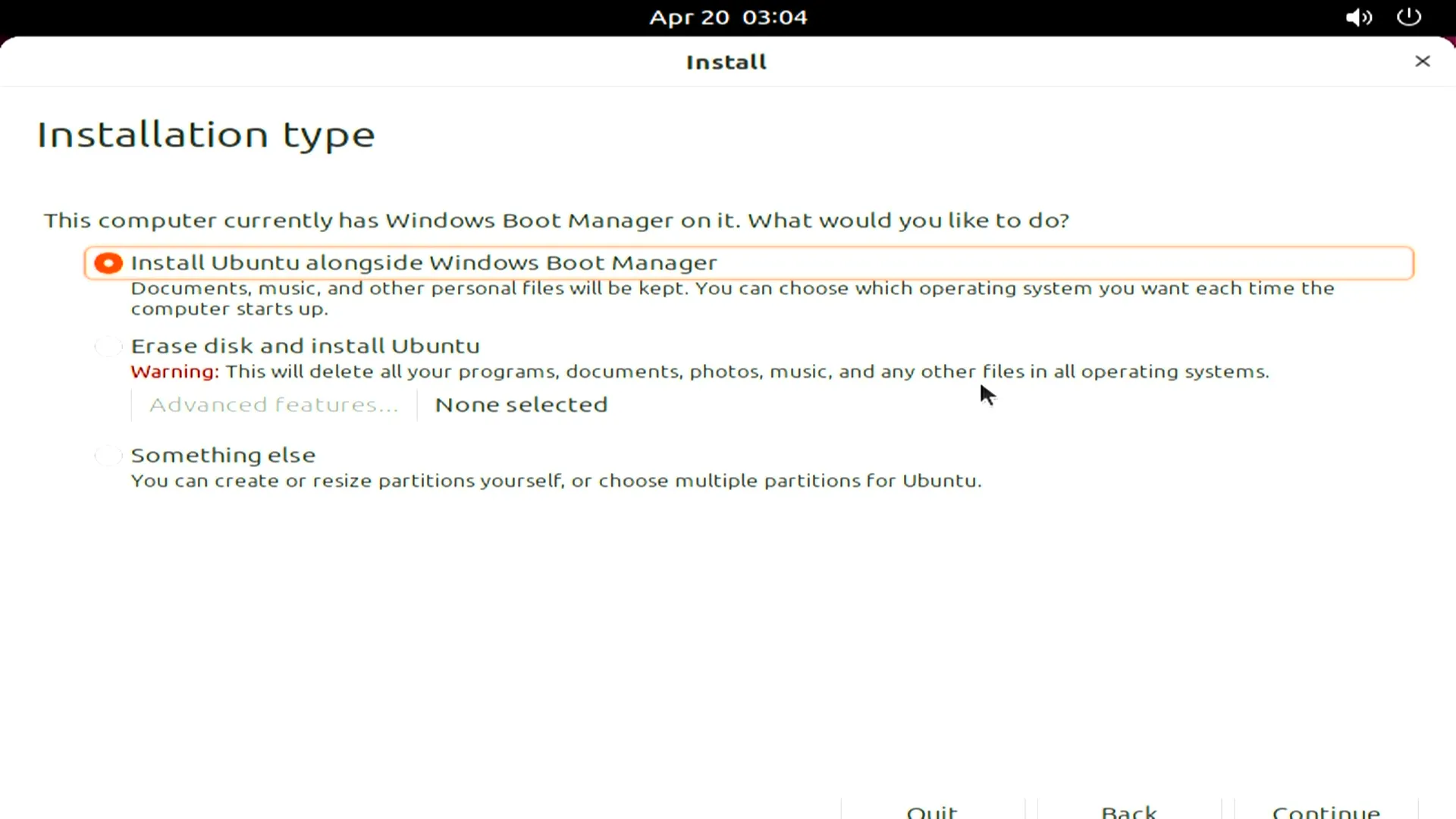
Installation Type
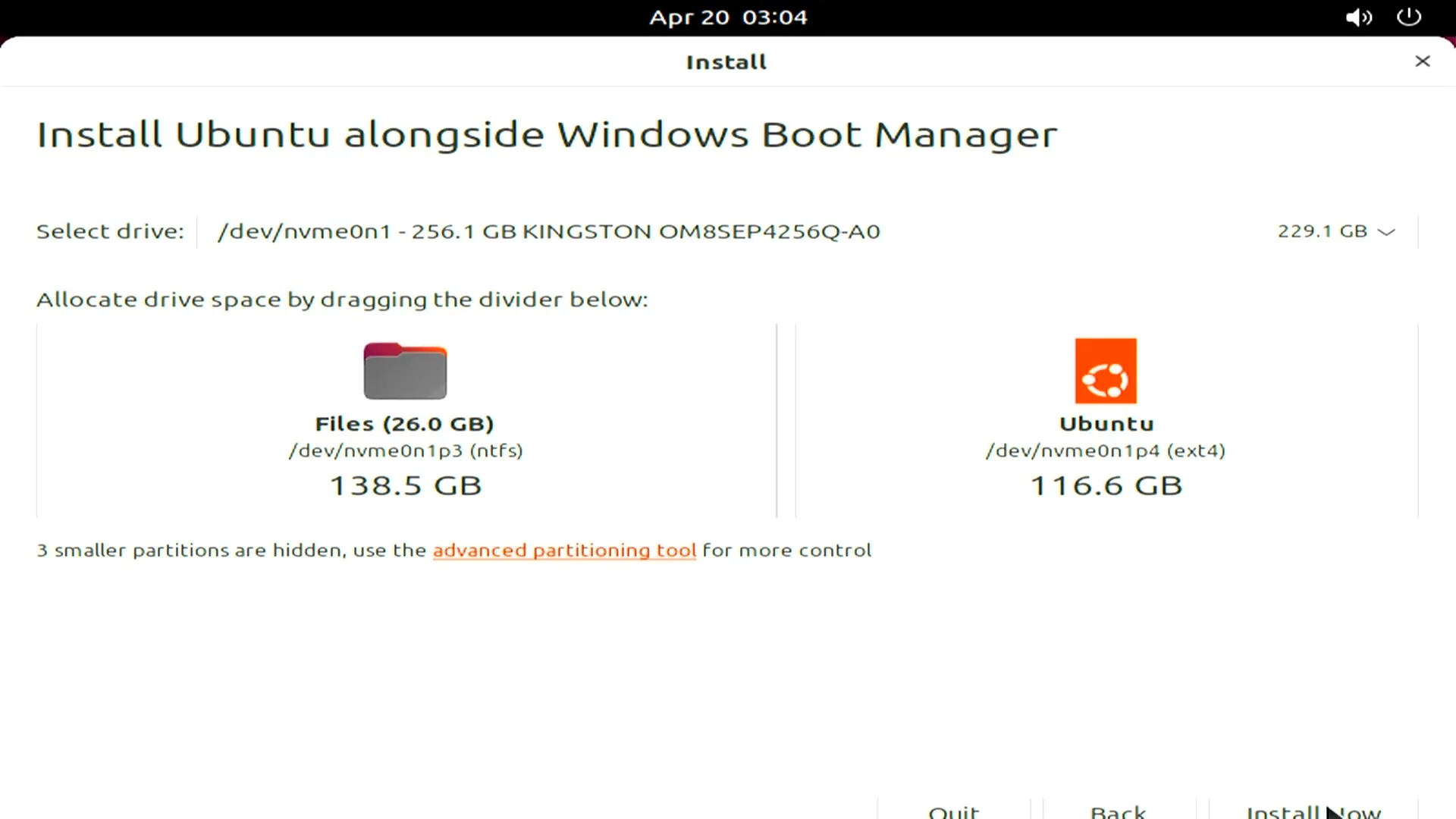
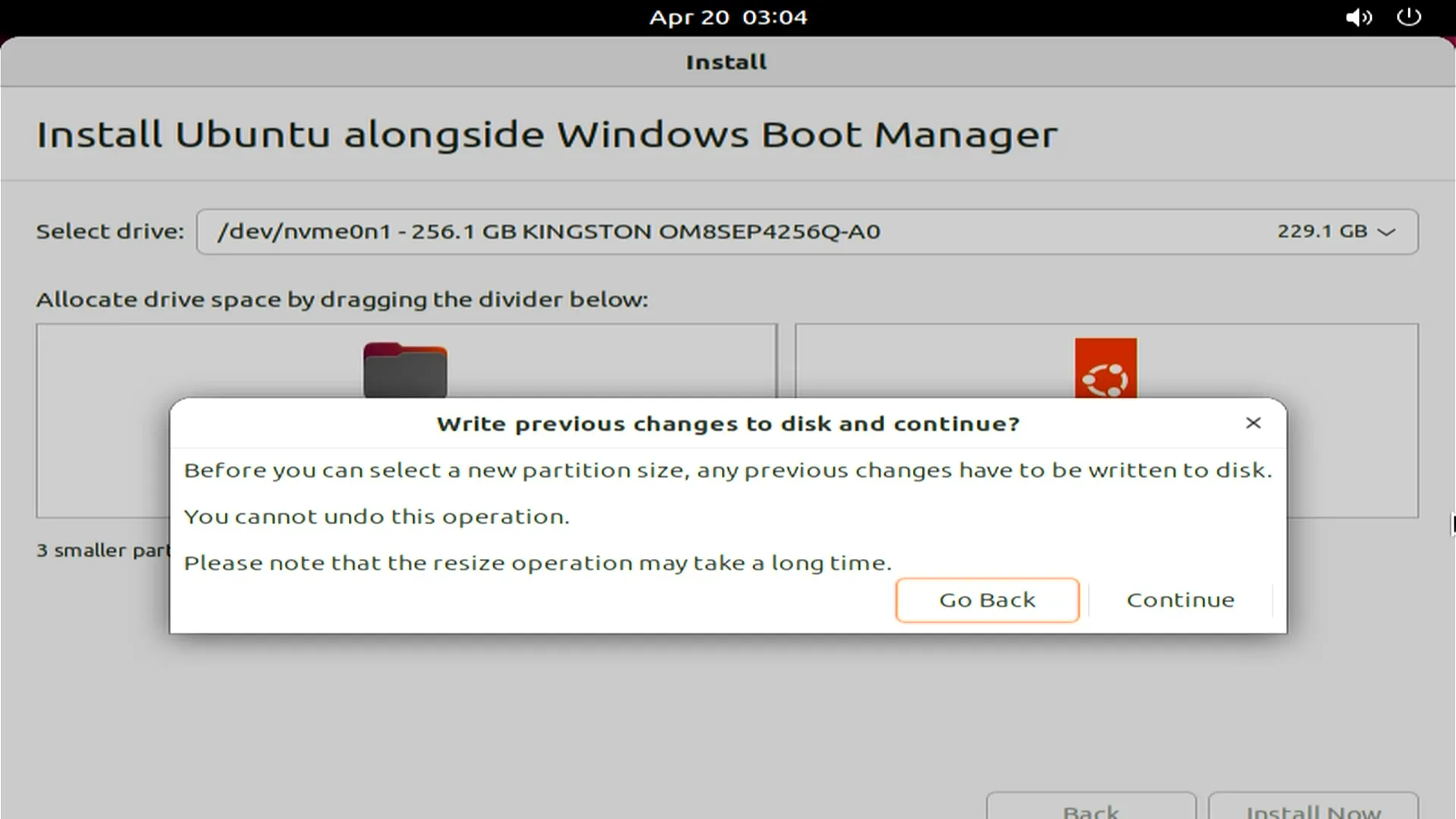
- If installing alongside another OS (e.g., Windows), select Install Ubuntu alongside...
- For full disk install, choose Erase disk and install Ubuntu.
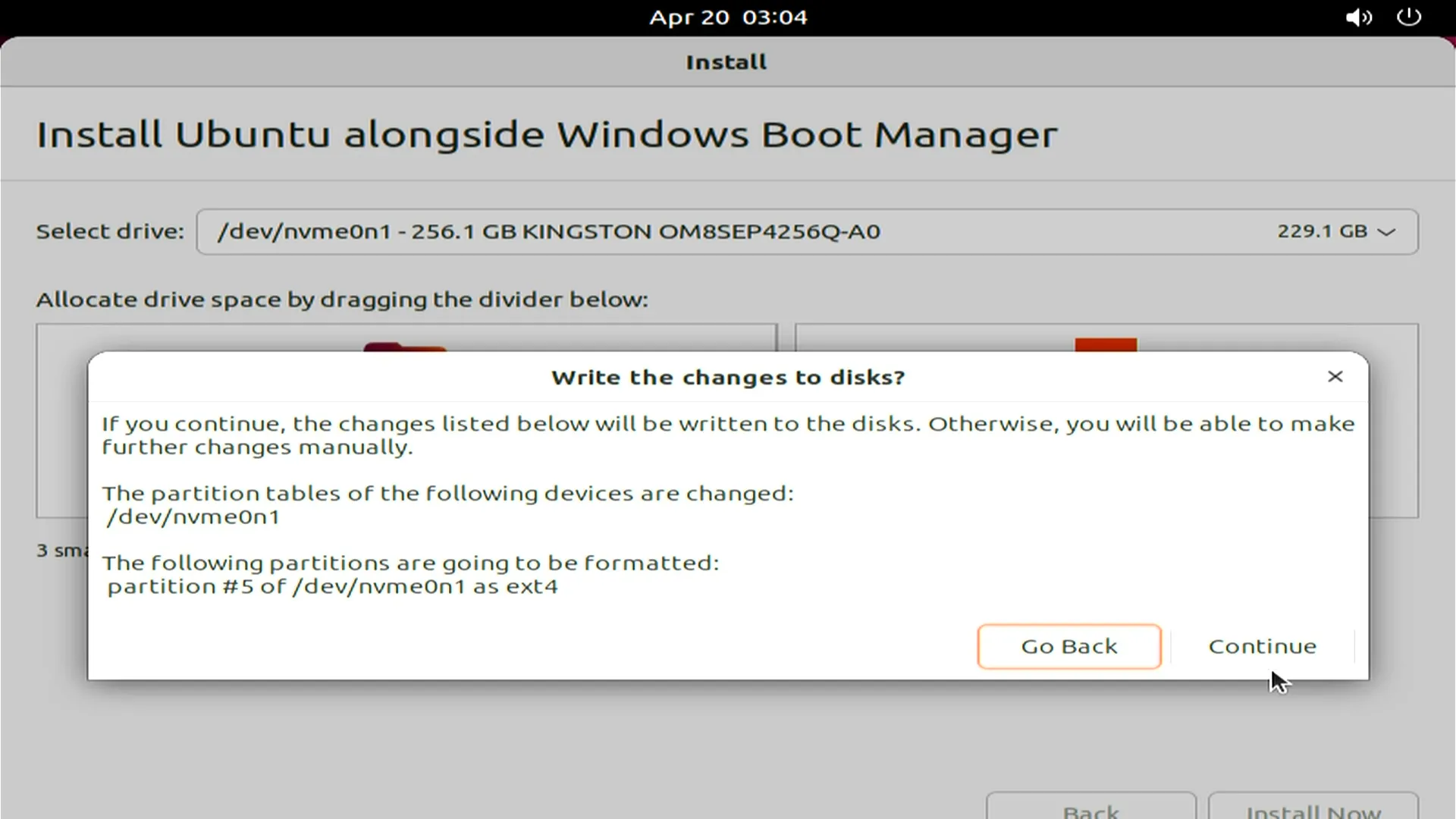
- Confirm partition changes when prompted.
-
Set Location & User Account
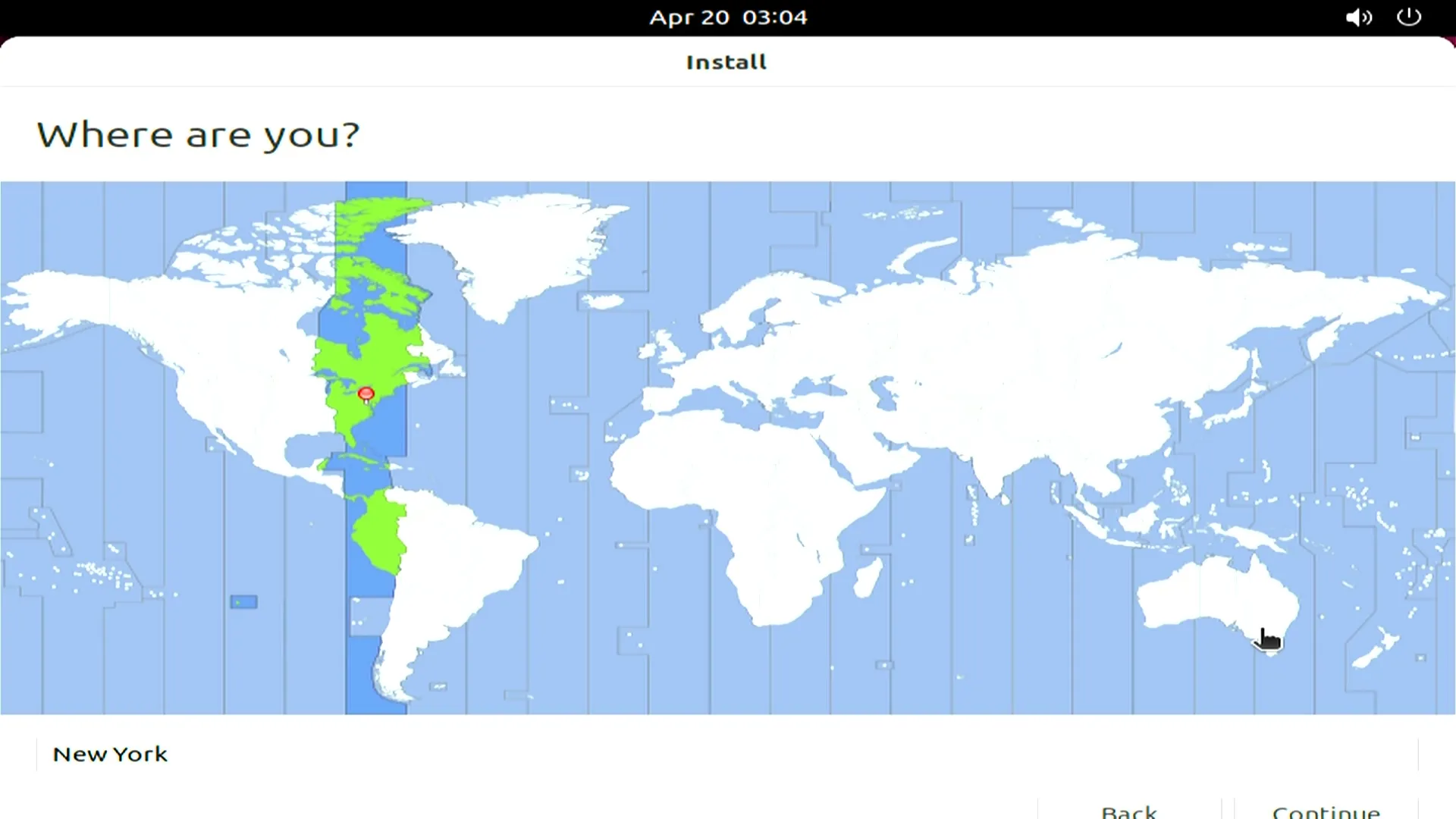
- Select your time zone → Continue.
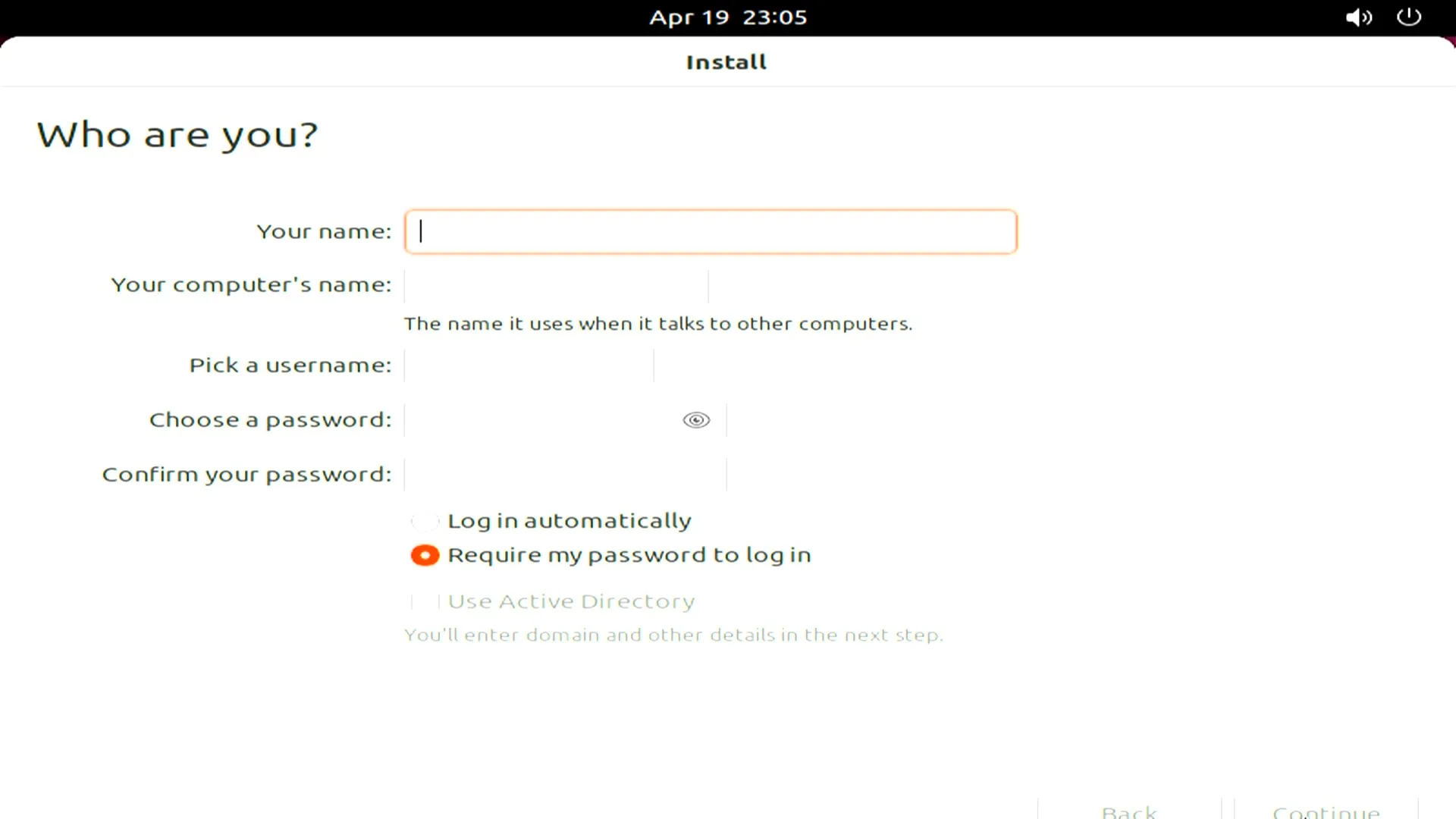
- Enter your name, computer name, username, and password.
- Select your time zone → Continue.
-
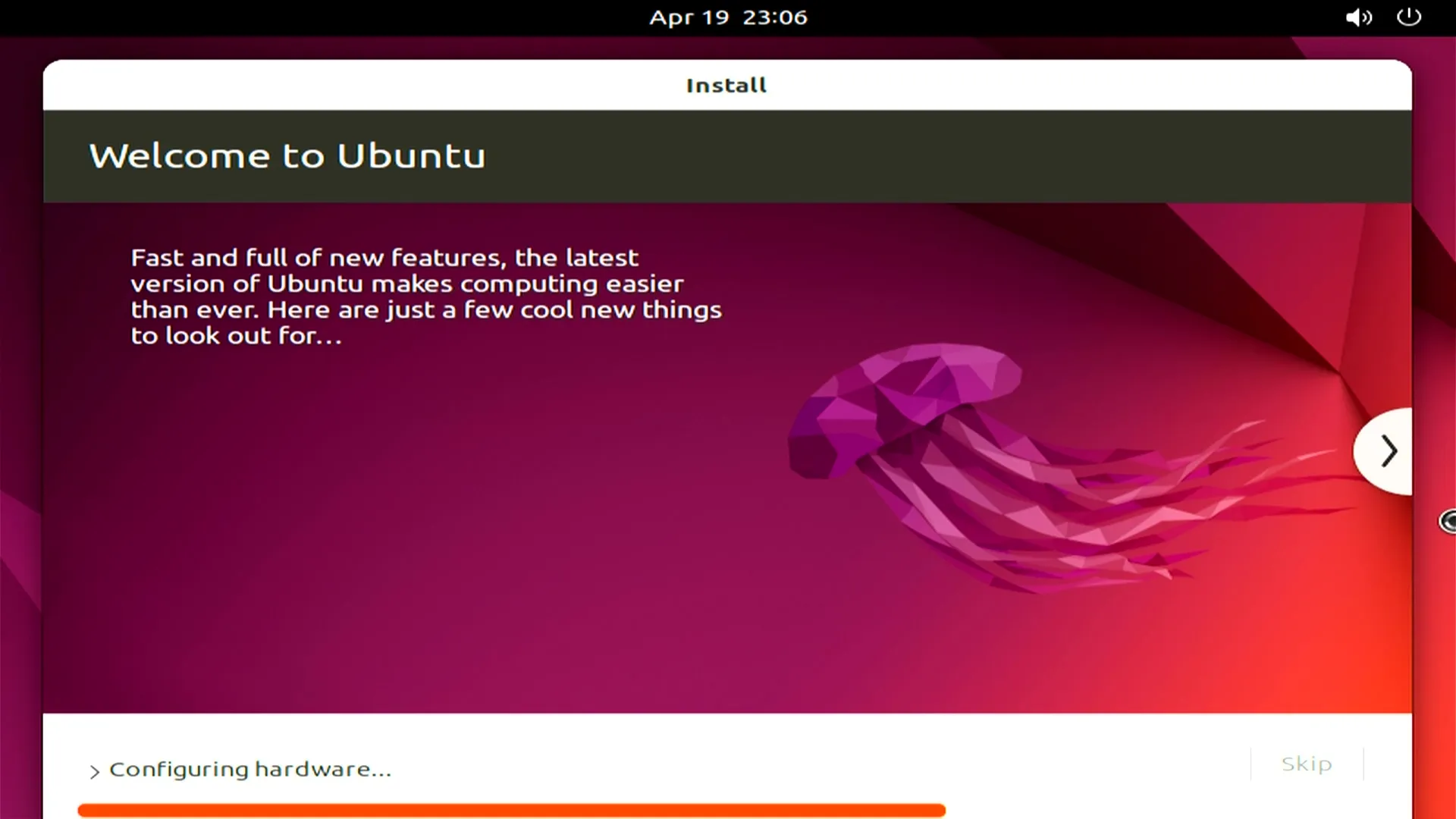
Complete Installation
Wait for the installer to finish copying files and configuring the system.
-
Restart & Enjoy!
When prompted, click Restart Now. Remove the USB drive after shutdown.
After reboot, log in with your credentials — welcome to Ubuntu on LattePanda Iota!
Install HWE Kernel
- Update package lists and install the HWE kernel meta-package for Ubuntu 22.04 LTS:
sudo apt update
sudo apt install --install-recommends linux-generic-hwe-22.04
What these commands do:
sudo apt update: Refreshes the package index.
sudo apt install --install-recommends linux-generic-hwe-22.04: Installs the Hardware Enablement (HWE) kernel and its recommended dependencies for Ubuntu 22.04.