Processor GPIO Programming
Besides the GPIOs provided by the onboard RP2350 co-processor, the 34-pin GPIO header of LattePanda Sigma 2 also exposes 4 pins routed from the Intel processor (PCH): an I2C3 port (SCL3 / SDA3) and two general-purpose I/Os (D22 / D23).
This chapter demonstrates how to operate these pins under Linux (the pre-installed Ubuntu 26.04 LTS). For GPIO control via the RP2350 co-processor instead, please refer to the RP2350 GPIO Programming chapter.
Pinout Assignment
| Header Pin | Processor PCH Signal | Function | Notes |
|---|---|---|---|
| SCL3 | I2C3_SCL | I2C3 Clock | Integrated 2.2K pull-up resistor |
| SDA3 | I2C3_SDA | I2C3 Data | Integrated 2.2K pull-up resistor |
| D22 | GPP_D22 | General-Purpose I/O | Integrated 4.7K pull-up resistor |
| D23 | GPP_D23 | General-Purpose I/O | Integrated 4.7K pull-up resistor |
For the physical pin locations on the 34-pin header, please refer to the GPIO Header section.
These pins originate from the processor PCH (1.8V logic level) and undergo MOSFET level-shifting to reach a 3.3V logic level. The high level of these pins is achieved via pull-up resistors, which provides weaker drive capability compared to push-pull outputs.
Danger
All these pins use 3.3V logic levels. Do not connect 5V devices directly.
I2C (I2C3 Port)
Preparation
Install the i2c-tools package:
sudo apt update
sudo apt install i2c-tools
On the Ubuntu OS, the processor's I2C3 port enumerates as /dev/i2c-2 (bus number 2).
To access the bus without sudo, add your account to the i2c group (takes effect after re-login or reboot):
sudo usermod -aG i2c $USER
Scan for Devices
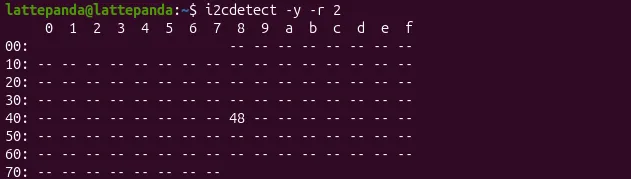
Connect your I2C device to SCL3 / SDA3 (and GND, plus 3.3V power if needed), then scan the bus for device addresses:
i2cdetect -y -r 2
Programming with Python smbus2
On Ubuntu 23.04 and later, the system Python environment is externally managed (PEP 668), so installing packages into it with pip install is blocked by default.
Create an isolated virtual environment first:
sudo apt install python3-venv
python3 -m venv ~/i2c_venv
source ~/i2c_venv/bin/activate
pip install smbus2
The following example scans the I2C3 bus and prints the addresses of all connected devices. Save it as i2c_scan.py:
from smbus2 import SMBus

BUS = 2  # I2C3 enumerates as /dev/i2c-2
FIRST = 0x03
LAST = 0x77

found = []

with SMBus(BUS) as bus:
    for addr in range(FIRST, LAST + 1):
        try:
            bus.read_byte(addr)  # The device ACKs if present
            found.append(addr)
        except OSError:
            pass  # No device at this address

if found:
    print("Found device(s) at: " + ", ".join(f"0x{a:02X}" for a in found))
else:
    print("No I2C device found.")
Run it with the virtual environment activated:
python3 i2c_scan.py
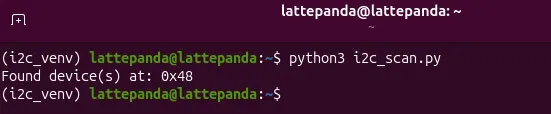
This produces the same result as the i2cdetect -y -r 2 command above — both list the addresses of the devices connected to the bus.
GPIO (D22 / D23)
Output Drive Capability
On D22 / D23, the high level is provided by pull-up resistors (see Pinout Assignment), so the pins source only weak current in the HIGH state. Wire loads active-low where possible — e.g. connect an LED between 3.3V and the pin (it lights up when the pin is LOW) — rather than driving loads from the pin to GND.
GPIO Chip and Line Offsets
PCH GPIOs are exposed through the Linux GPIO character device interface and are operated with the libgpiod tools. Install them and list the controllers:
sudo apt update
sudo apt install gpiod python3-libgpiod
sudo gpiodetect
On the Ubuntu OS, the PCH GPIO communities enumerate as five controllers, gpiochip0 – gpiochip4 (INTC10BC:00 – INTC10BC:04).
D22 and D23 belong to gpiochip4 (INTC10BC:04, 72 lines), at the following line offsets:
| Header Pin | GPIO Line | GPIO Controller | Line Offset | Status |
|---|---|---|---|---|
| D22 | GPP_D22 | gpiochip4 | 49 | Verified on Ubuntu 24.04 & 26.04 |
| D23 | GPP_D23 | gpiochip4 | 50 | Verified on Ubuntu 24.04 & 26.04 |
Root Privileges Required
On the Ubuntu OS, the /dev/gpiochip* devices are owned by root:root with mode 0600, and no gpio group exists — all GPIO operations below require sudo, including the Python examples. (Granting non-root access via a custom udev rule is possible but not covered here.)
Control via Command Line
Read the input level of D22 — left floating it reads active (HIGH, pulled up by the onboard 4.7K resistor); short the pin to GND and it reads inactive (LOW):
sudo gpioget -c gpiochip4 49

Set D23 to output and hold its level:
# Output LOW (held until Ctrl+C)
sudo gpioset -c gpiochip4 50=0

# Output HIGH (held until Ctrl+C)
sudo gpioset -c gpiochip4 50=1
Programming with Python libgpiod
GPIO Input (D22 / D23)
Save the following code as gpio_in.py — it reads and prints the levels of D22 and D23 every second (both pins are requested as inputs in a single multi-line request; the next example drives them as outputs):
import time
import gpiod
from gpiod.line import Direction, Value

CHIP = "/dev/gpiochip4"   # PCH GPIO controller
LINE_OFFSET_D22 = 49      # Line offset of GPP_D22
LINE_OFFSET_D23 = 50      # Line offset of GPP_D23

with gpiod.request_lines(
    CHIP,
    consumer="sigma2-gpio-in",
    config={
        LINE_OFFSET_D22: gpiod.LineSettings(direction=Direction.INPUT),
        LINE_OFFSET_D23: gpiod.LineSettings(direction=Direction.INPUT),
    },
) as request:
    print("Reading D22 D23 every second. Press Ctrl+C to stop.")
    try:
        while True:
            values = request.get_values([LINE_OFFSET_D22, LINE_OFFSET_D23])
            d22, d23 = values
            print(f"D22: {'HIGH' if d22 == Value.ACTIVE else 'LOW'}  "
                  f"D23: {'HIGH' if d23 == Value.ACTIVE else 'LOW'}")
            time.sleep(1)
    except KeyboardInterrupt:
        pass
Run it (sudo required):
sudo python3 gpio_in.py
With nothing connected, both pins print HIGH (pulled up by the onboard 4.7K resistors); short either pin to GND and its reading prints LOW until released.
GPIO Output (D22 / D23)
Save the following code as gpio_out.py — it drives D22 and D23 to complementary levels and swaps them every second:
import time
import gpiod
from gpiod.line import Direction, Value

CHIP = "/dev/gpiochip4"  # PCH GPIO controller
LINE_OFFSET_D22 = 49     # Line offset of GPP_D22
LINE_OFFSET_D23 = 50     # Line offset of GPP_D23

with gpiod.request_lines(
    CHIP,
    consumer="sigma2-gpio-out",
    config={
        LINE_OFFSET_D22: gpiod.LineSettings(
            direction=Direction.OUTPUT,
            output_value=Value.ACTIVE,
        ),
        LINE_OFFSET_D23: gpiod.LineSettings(
            direction=Direction.OUTPUT,
            output_value=Value.INACTIVE,
        ),
    },
) as request:
    print("D22 and D23 alternating every second. Press Ctrl+C to stop.")
    try:
        while True:
            request.set_values({
                LINE_OFFSET_D22: Value.ACTIVE,
                LINE_OFFSET_D23: Value.INACTIVE,
            })
            time.sleep(1)
            request.set_values({
                LINE_OFFSET_D22: Value.INACTIVE,
                LINE_OFFSET_D23: Value.ACTIVE,
            })
            time.sleep(1)
    except KeyboardInterrupt:
        pass
Run it (sudo required):
sudo python3 gpio_out.py
Wire an LED with a current-limiting resistor between 3.3 V and each pin. The two LEDs light up alternately, each when its pin is LOW.
libgpiod v1 vs v2
The examples above use the libgpiod v2 API (gpiod 2.2.x) with Ubuntu 26.04, and both were verified on it. Examples written for the older v1 API (gpiod.Chip / get_line) will not run on this system.
Language Reference
man i2cdetect/man i2cget/man gpioset/man gpioget- libgpiod documentation