RP2350 GPIO Programming - Arduino C++
Preparation
Arduino C++ provides a simple and intuitive framework for programming microcontrollers. This section guides you through setting up the Arduino IDE to program the RP2350.
Follow these steps to set up your development environment:
-
Install the Arduino IDE.
Download and install the Arduino IDE from the official Arduino website.
-
Add RP2350 board support to the Arduino IDE.
Open the Arduino IDE, navigate to:
File→Preferences.In the
Additional Boards Manager URLsfield, add the following URL:https://github.com/earlephilhower/arduino-pico/releases/download/global/package_rp2040_index.jsonClick
OKto save the settings.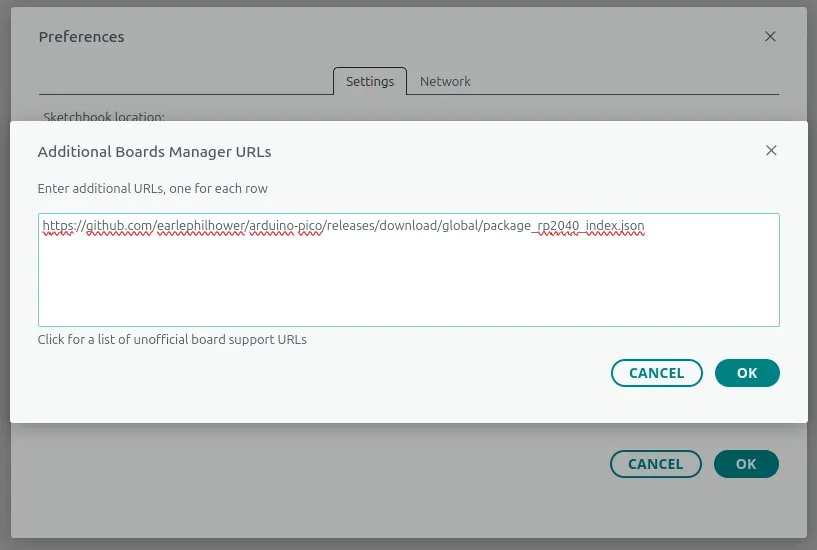
-
Install the board package.
Navigate to:
Tools→Board→Boards Manager.Search for
picoorrp2350in the search box.Find
Raspberry Pi Pico/RP2040/RP2350by Earle F. Philhower, III, then clickInstall.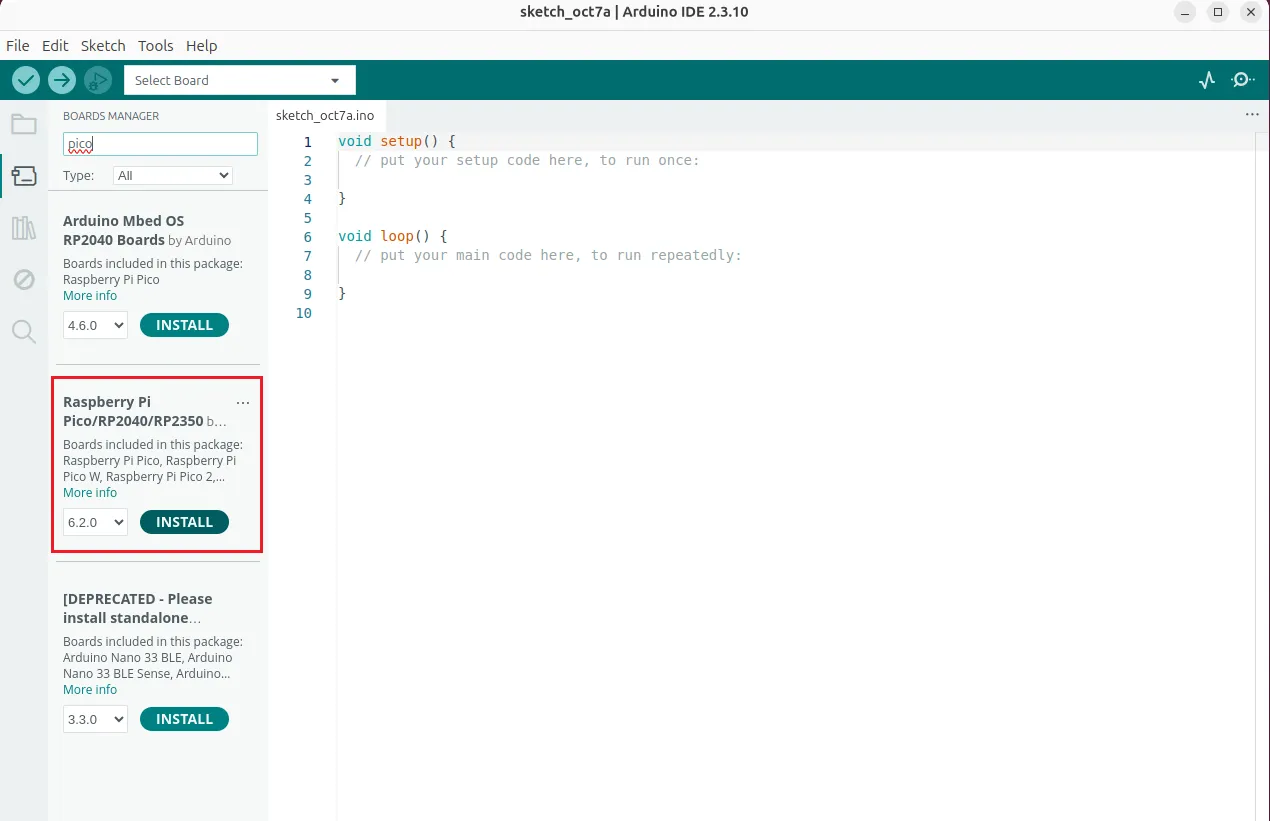
Wait for the installation to complete. The download process may take time, depending on your network speed.
Note
RP2350 support requires version 4.0 or later of the arduino-pico core. If you installed the package before, update it in the Boards Manager.
-
Select the board.
After installation, navigate to:
Tools→Board→Raspberry Pi Pico/RP2040/RP2350, selectRaspberry Pi Pico 2.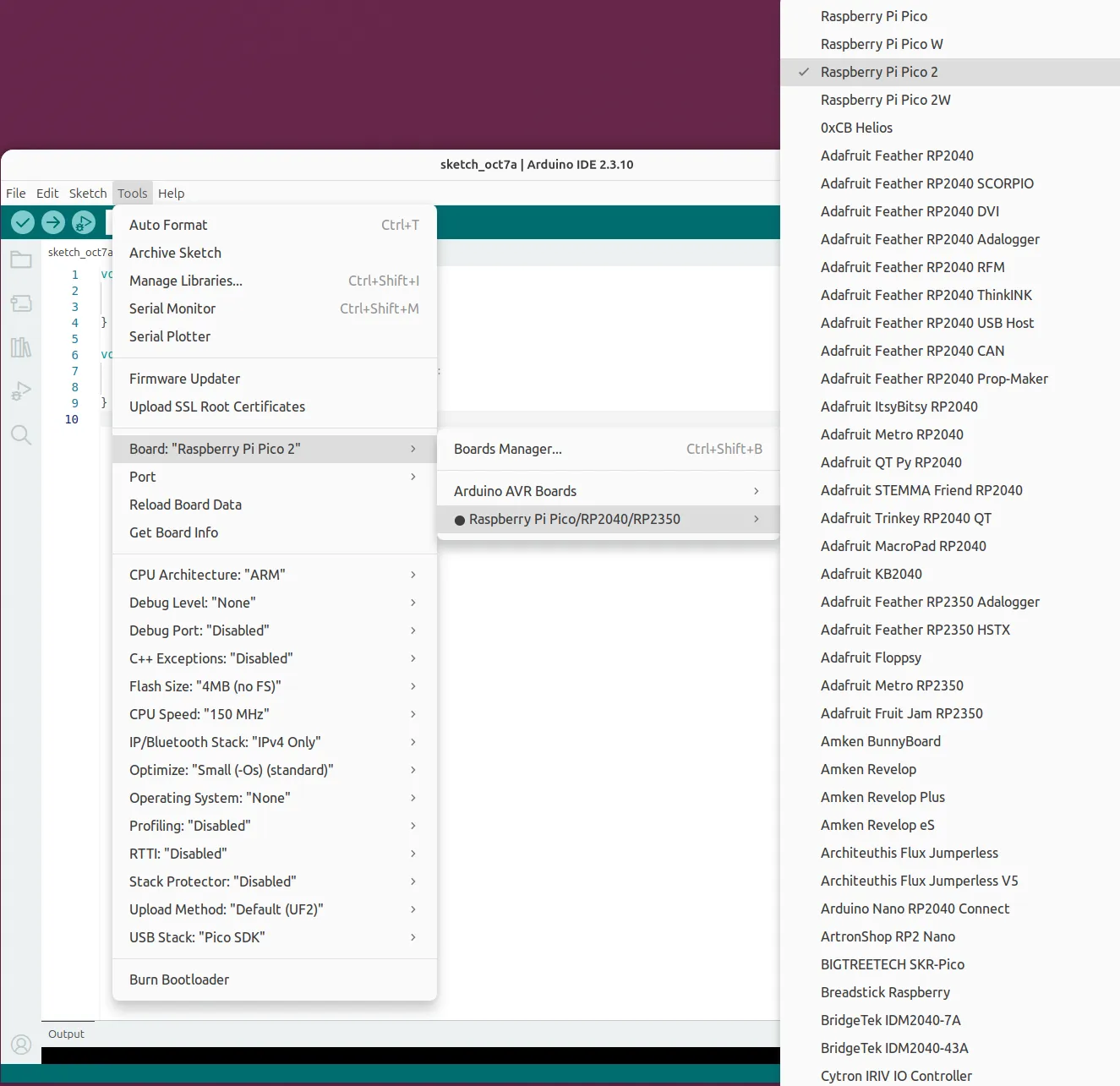
Upload the First Sketch
For the first upload, you must manually put the RP2350 into bootloader mode. This section uses the built-in "Blink" example to demonstrate the process. The example blinks LED_BUILTIN, which maps to GPIO25 — the onboard red LED on Sigma 2, so no external wiring is required.
-
Open the Arduino IDE.
-
In the Arduino IDE, navigate to
File → Examples → Basics → Blink. -
Verify that the
Raspberry Pi Pico 2board is selected. -
Enter bootloader mode.
Press and hold the
MCU_BOOTbutton, then press and release theMCU_RSTbutton. Finally release theMCU_BOOTbutton.The OS will now detect the RP2350 as a new USB Mass Storage Device (like a flash drive), typically named
RP2350. -
Select the upload port.
Navigate to:
Tools → Port→ SelectUF2 Board.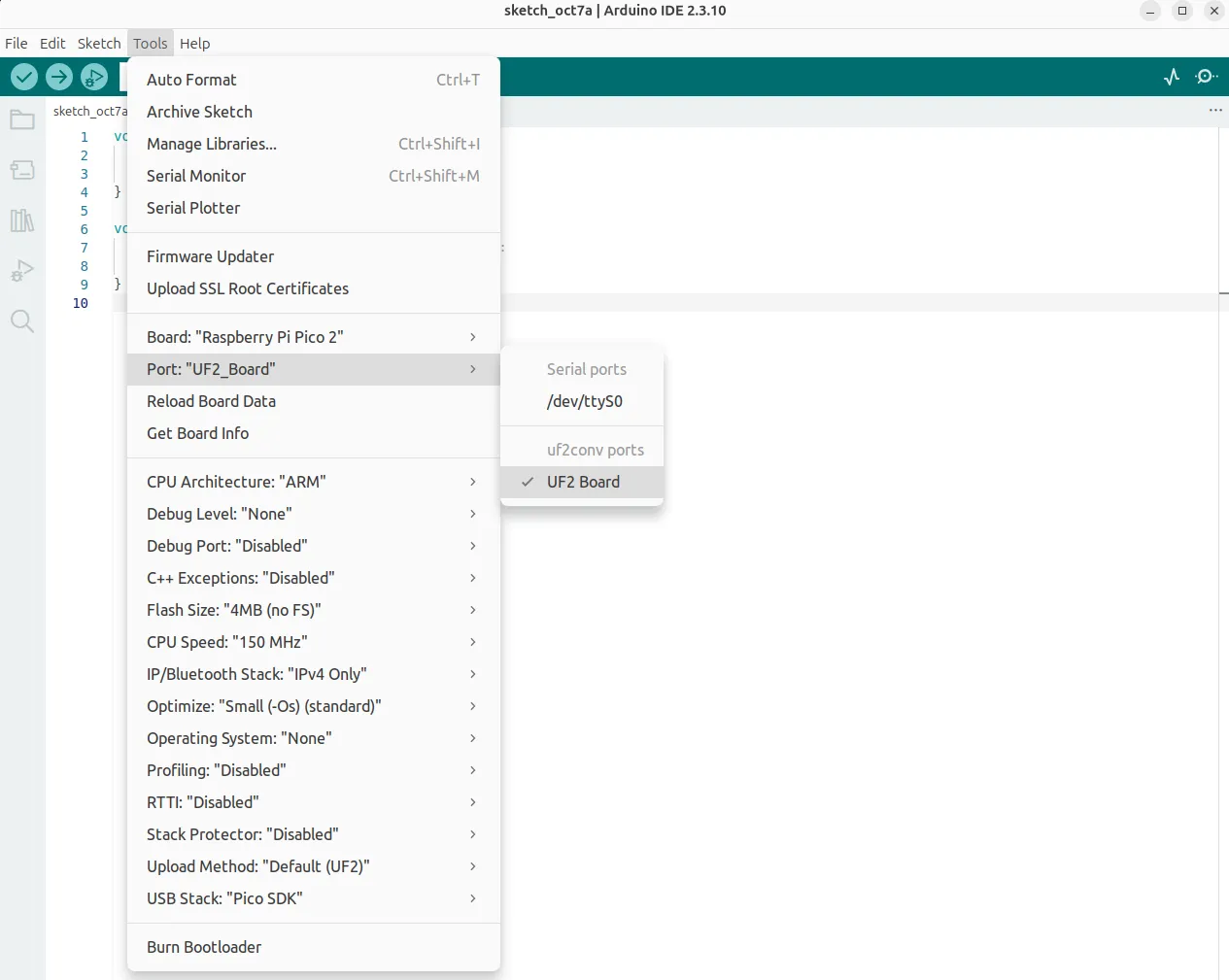
After the first upload, this is not necessary as the arduino-pico core has auto-reset support. Select the appropriate serial port shown in the Arduino
Tools → Port → Serial Portmenu once. -
Click the
Uploadbutton to upload the code to the RP2350.Wait for the upload process to complete. You should see "Done uploading" in the status bar.
-
The onboard red LED will begin flashing on and off at 1-second intervals.
Upload Subsequent Sketches
After the first upload, the arduino-pico core enables an auto-reset feature, which simplifies future uploads. You no longer need to enter bootloader mode manually.
-
Select the Serial Port
Navigate to
Tools → Portand select the serial port corresponding to the onboard RP2350 (e.g.,COM3or/dev/ttyACM0).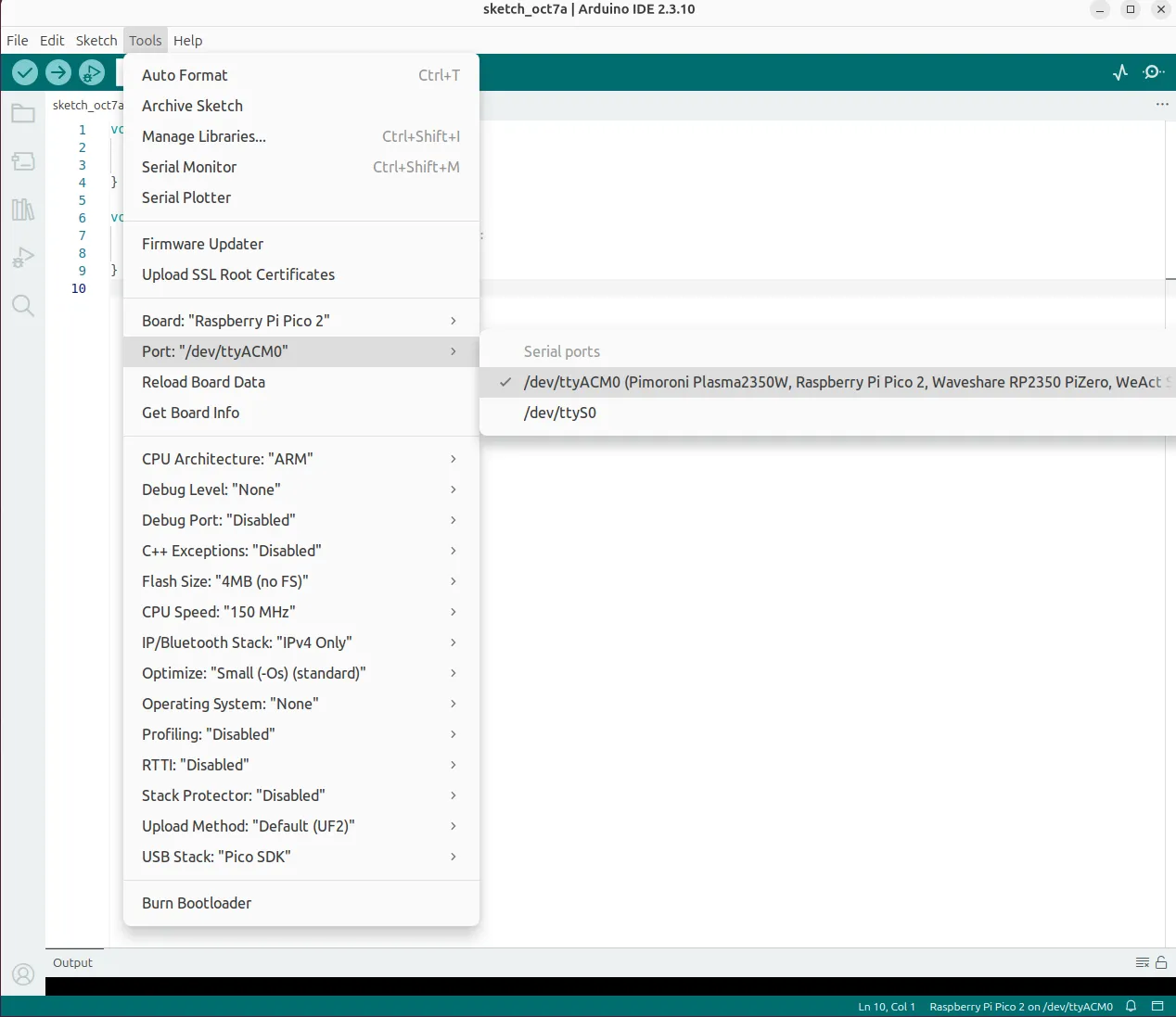
-
Upload your code
With your new sketch open, simply click the
Uploadbutton. The Arduino IDE will automatically handle the reset and upload process.
Language Reference
Arduino C++ Language Reference
Arduino-Pico Core Documentation