BIOS Setup
Enter into BIOS Menu
-
Power on or reboot LattePanda.
-
Press the Del key repeatedly before the LattePanda logo appears on the screen during the boot process.
Select Bootable Device
- Power on or reboot LattePanda.
- Press the F7 key repeatedly until the bootable devices appear on the screen.
- Press Up or Down key to select the bootable device, and press Enter key to boot from it.
TDP / Power Limit Settings
Understanding PL1 and PL2
- PL1 (Power Limit 1): The long-term power limit. This defines the sustained power consumption the processor maintains under continuous load.
- PL2 (Power Limit 2): The short-term burst power limit. It allows the processor to exceed PL1 for a brief period to handle instantaneous spikes in workload before scaling back to the PL1 level to manage thermals.
LattePanda Sigma 2 automatically manages the processor's power limits (PL1 / PL2) according to the power source:
- When powered via the DC jack, full performance is released by default: PL1 = 65W, PL2 = 95W.
- When powered via a USB Type-C PD adapter, Sigma 2 detects the adapter's maximum wattage at power-on and adjusts PL1 / PL2 accordingly (100W / 65W / 45W PD adapters map to PL1/PL2 = 65W / 40W / 30W respectively).
For details, please refer to the DC Adapter Wattage and Performance and PD Adapter Wattage and Performance sections.
Manual configuration options are also available in the BIOS settings, and their values take precedence over the defaults.
Path: Advanced -> CPU Configuration -> Power Limit 1, Power Limit 2, Power Limit 4 Override
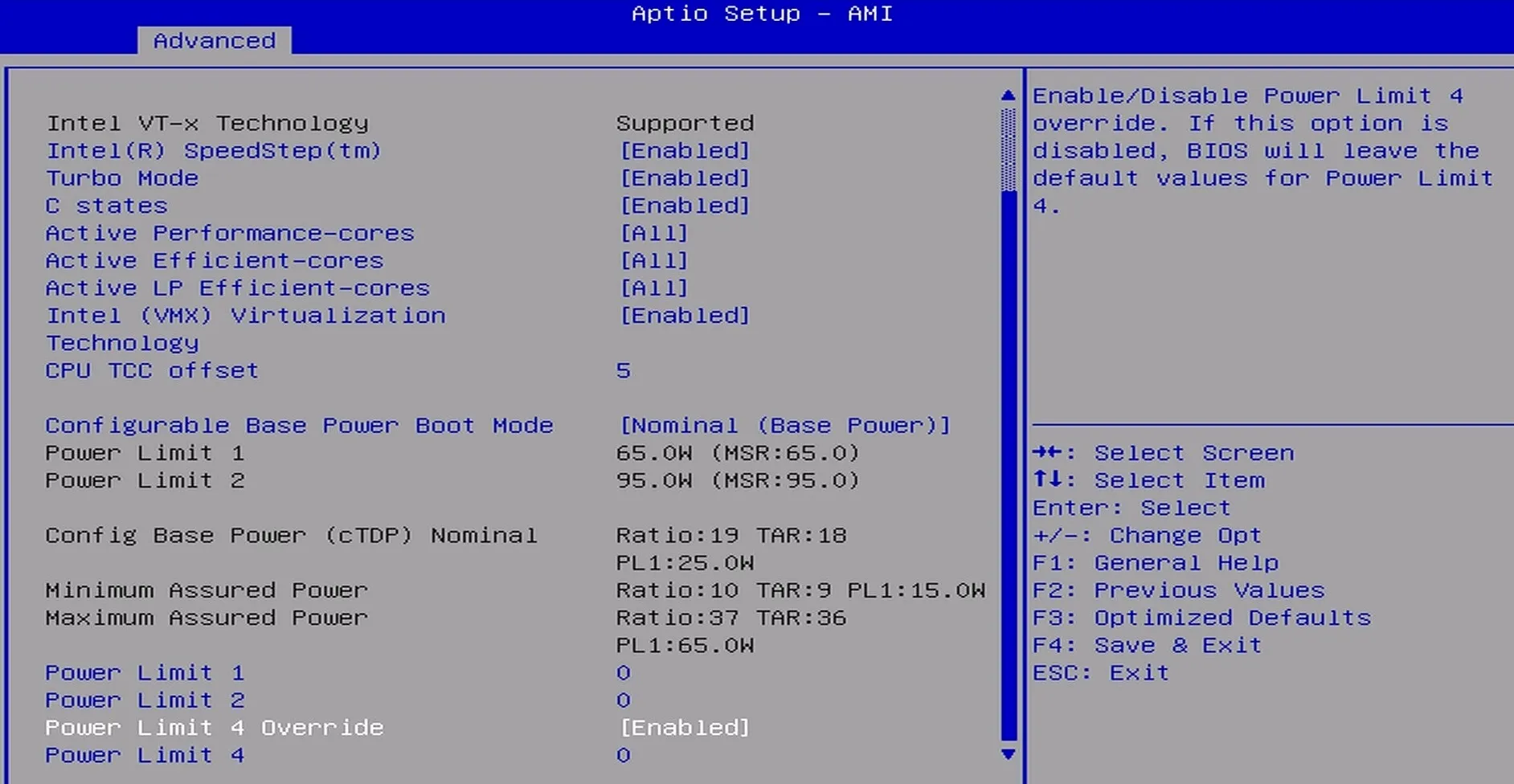
The default value is 0, which means the automatic values described above are used. The unit is mW.
For example, if you want to set both PL1 and PL2 to
65W, enter65000for both values in the BIOS menu.
To manually set Power Limit 4, enable Power Limit 4 Override, then configure the Power Limit 4 option that appears.
Minimum Assured Power
According to the Minimum Assured Power parameter provided by Intel, the PL1 and PL2 value must not be lower than 15W. Otherwise, it will cause the processor to operate at its minimum frequency, severely impacting performance.
USB Ports Power Control
All four USB Type-A ports support power control via the Always On USB setting in the BIOS, which determines whether the ports keep outputting 5V power when the system is in hibernate or shutdown state.
Path: Advanced -> Power Configuration -> Always On Rear USB Port, Always On Front USB Port, Always On USB PIN Port
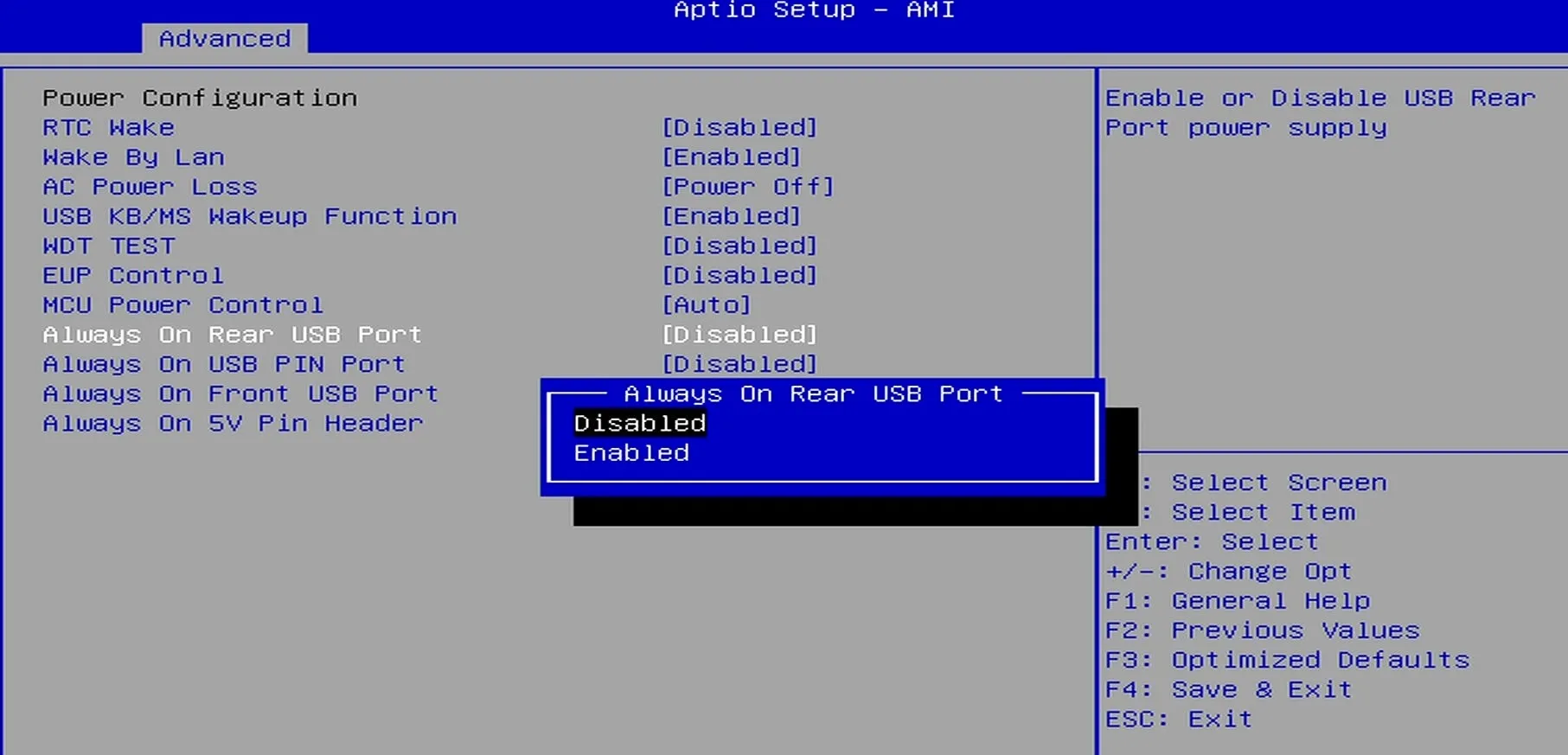
The default value is Disabled, that is, the default behavior is as follows:
| OS State | USB Port Power Output |
|---|---|
| Run | Enabled |
| Sleep / Suspend (Modern Standby) | Enabled |
| Hibernate | Disabled |
| Shut Down | Disabled |
Enabled means the USB port can output 5V power; Disabled means the USB port cannot output 5V power.
If the option is set to Enable, the port will continue to output 5V power even when the system is in hibernate or shutdown state.
Regardless of the settings mentioned above, when the LattePanda is disconnected from the power supply and then reconnected without being turned on, the USB-A ports remain unpowered.
Note
The USB-A double-deck connector contains two USB ports, and the power supply to both ports can only be controlled together, not individually.
MCU Power Control
The power supply of the onboard RP2350 co-processor is controlled jointly by the BIOS and the DIP switch:
-
When the LattePanda board is
connected to power but not turned on, the RP2350's power supply is controlled by theMCU actuator of the DIP switch— please refer to the DIP Switch section. -
When the system is
running, insleep/suspend,hibernate, orshutdown, the RP2350's power supply is controlled by theMCU Power Controlsetting in the BIOS.Path:
Advanced->Power Configuration->MCU Power Control. The default setting isAuto.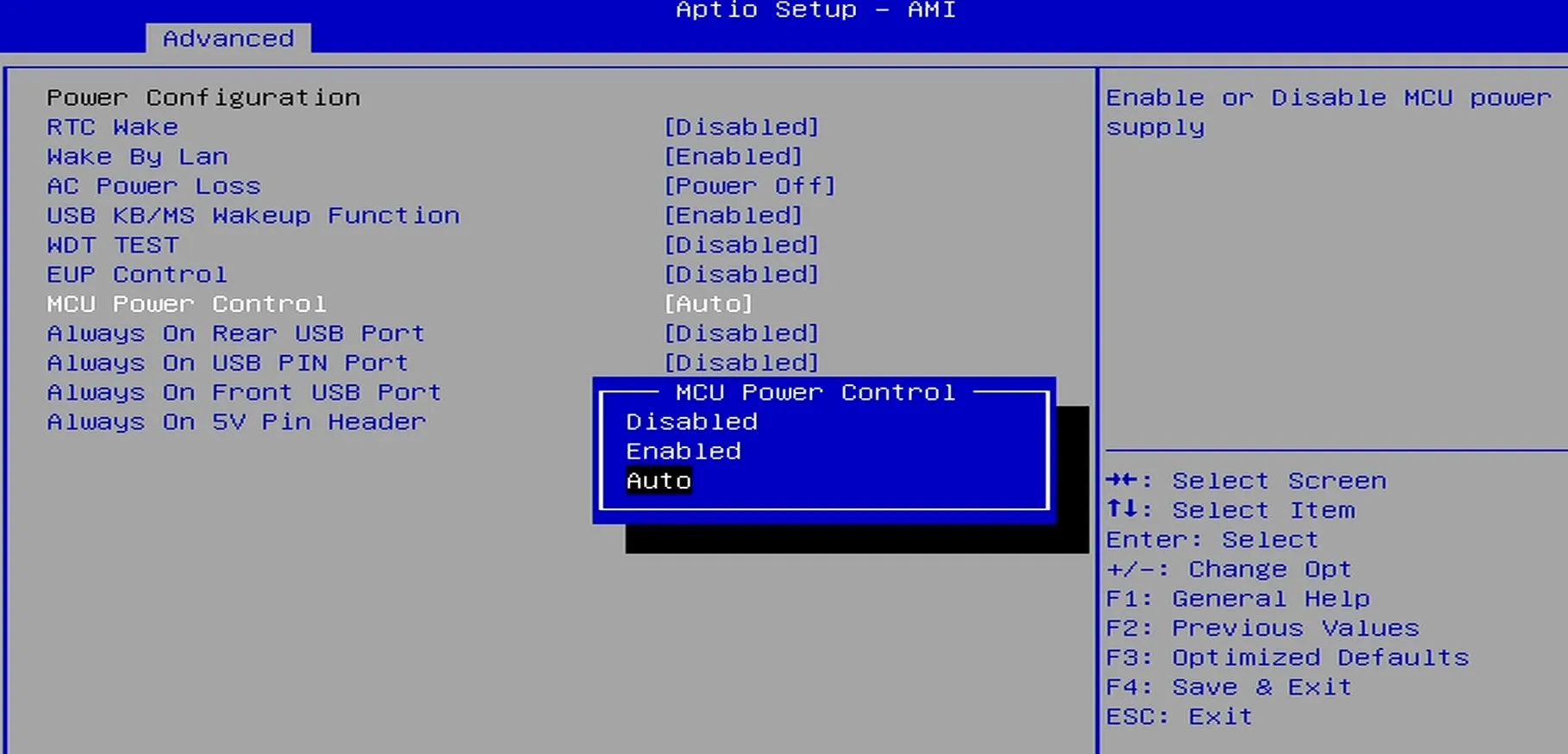
MCU Power Control OS State Power Supply to the RP2350 MCU Enabled Run Enabled Sleep / Suspend (Modern Standby) Enabled Hibernate Enabled Shut Down Enabled Auto Run Enabled Sleep / Suspend (Modern Standby) Enabled Hibernate Disabled Shut Down Disabled Disabled Run Disabled Sleep / Suspend (Modern Standby) Disabled Hibernate Disabled Shut Down Disabled Enabled means the RP2350 MCU is powered on; Disabled means the P2350 MCU is powered off.
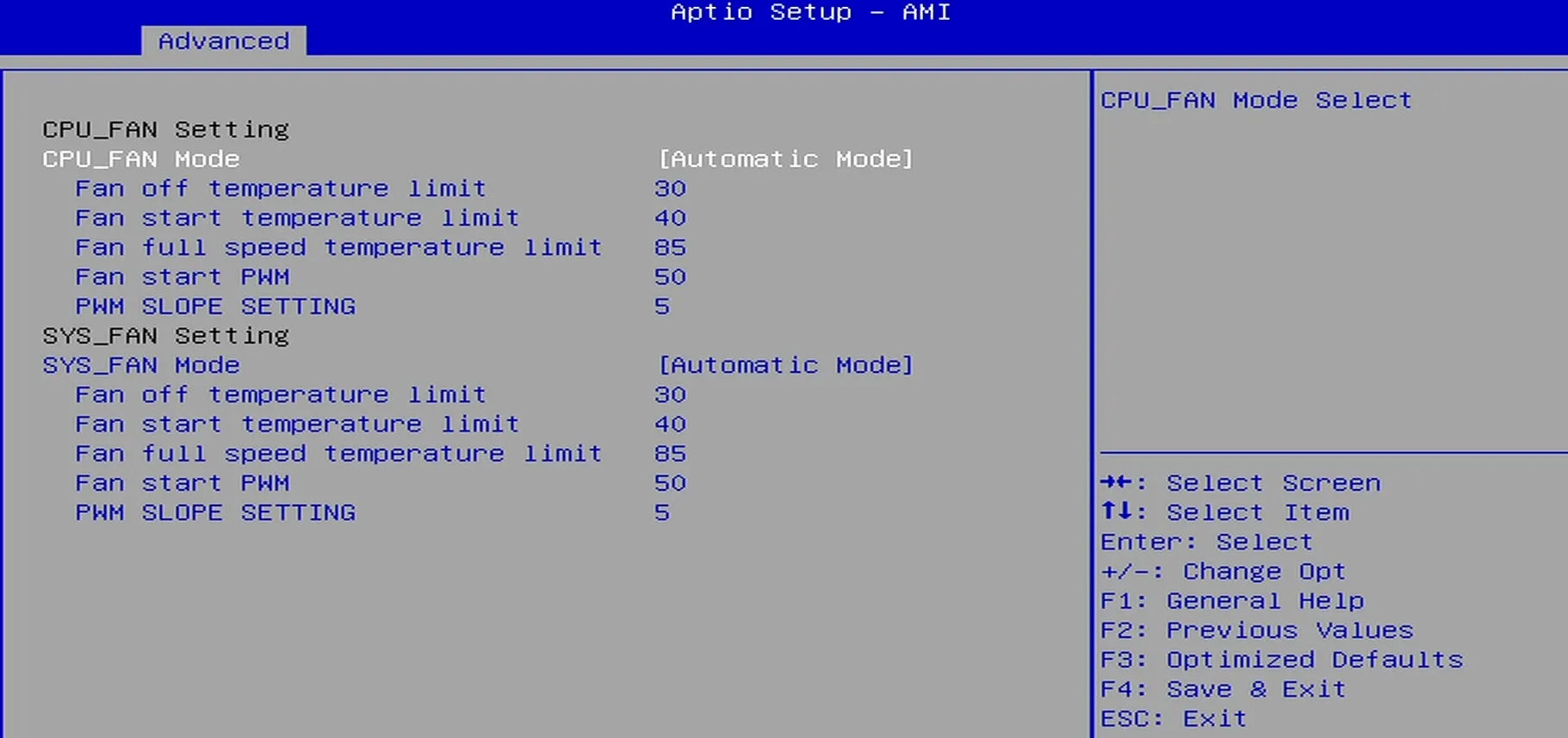
Cooling Fan Settings
You can modify the CPU and SYS fan settings in the BIOS.
Path: Advanced -> Hardware Monitor -> Smart Fan Function
Configure Bootable Device Order
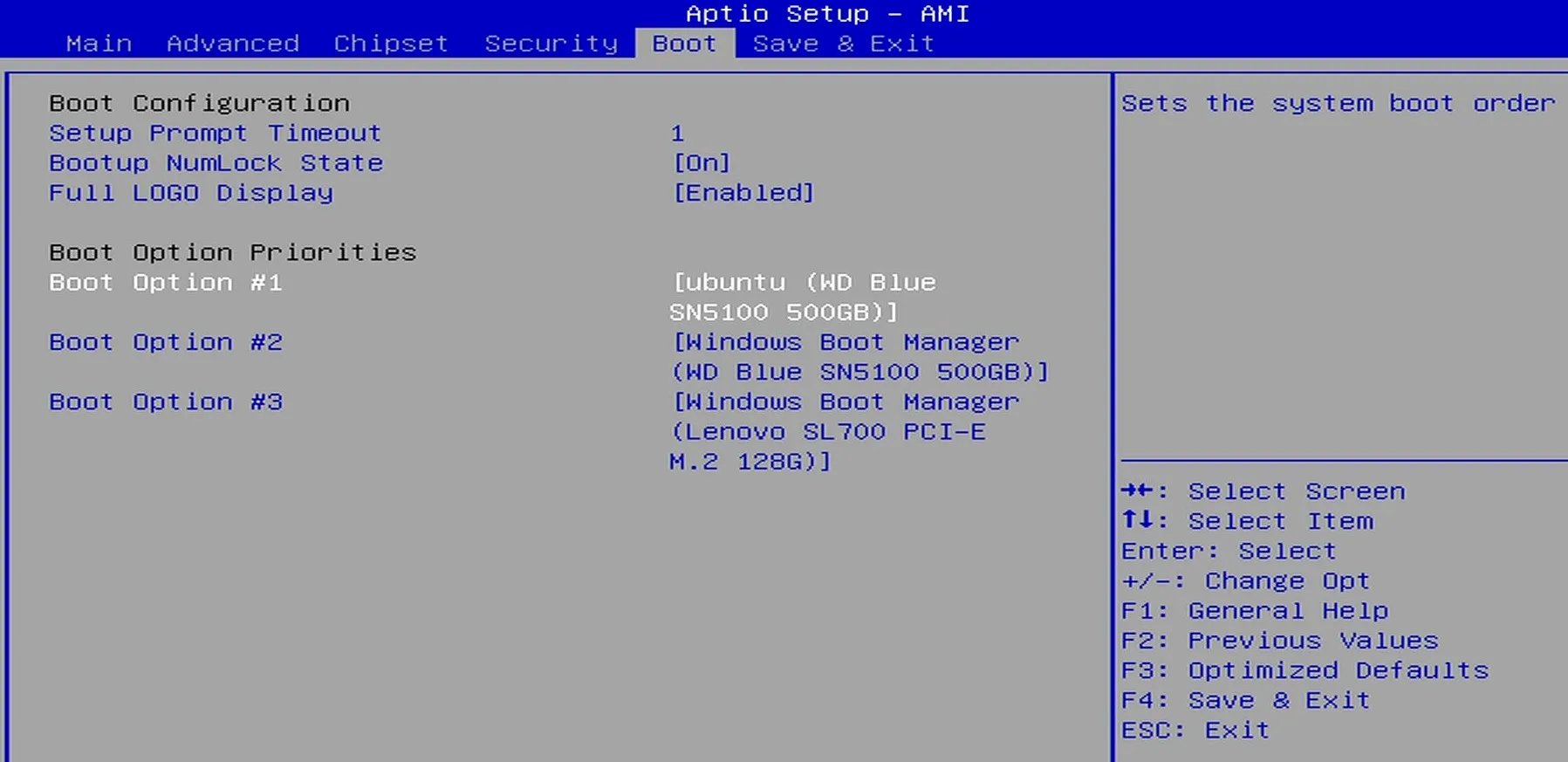
If the default boot order priorities don't meet your requirement, you can change them manually in the BIOS.
Path: Boot -> Boot Option Priorities
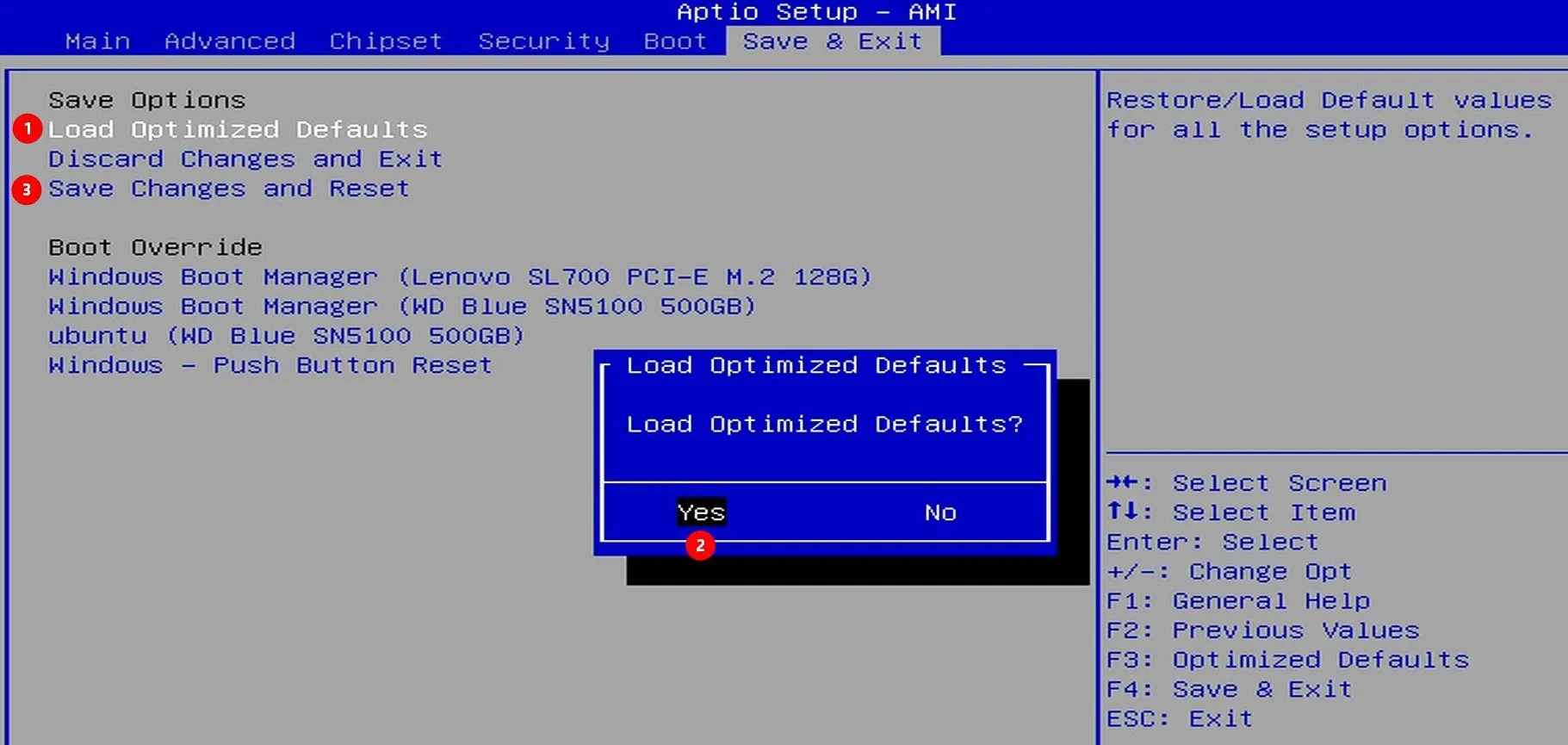
Restore Default Settings
You can remove the RTC battery to restore the BIOS to its default settings.
Alternatively, you can load the default settings from the BIOS menu as follows: