Linux Installation
The LattePanda Mu Ultra is based on a standard x86 architecture processor, meaning the Linux installation process is identical to that of a regular laptop or desktop computer. It is fully compatible with most mainstream Linux distributions.
We recommend using Ubuntu 24.04 LTS or later for the best experience and hardware compatibility.
For Ubuntu installation, you can refer to our detailed guide: Ubuntu Installation for LattePanda Sigma. The installation process is very similar for the LattePanda Mu Ultra).
For other Linux distributions (such as Debian, Arch Linux, Fedora), you can follow the official installation tutorials provided by the respective OS developers.
Kernel Requirement
For the best hardware compatibility with the LattePanda Mu Ultra, we recommend using a Linux distribution with a kernel version of 6.11 or higher.
General Installation Steps
-
Download the Linux ISO
Visit the official website of your chosen Linux distribution and download the ISO image file. We recommend downloading the latest LTS (Long Term Support) version for better stability.
-
Create a Bootable USB Drive
Burn the downloaded ISO image to a USB flash drive. You can use tools like Rufus for this purpose.
-
Boot from the USB Drive
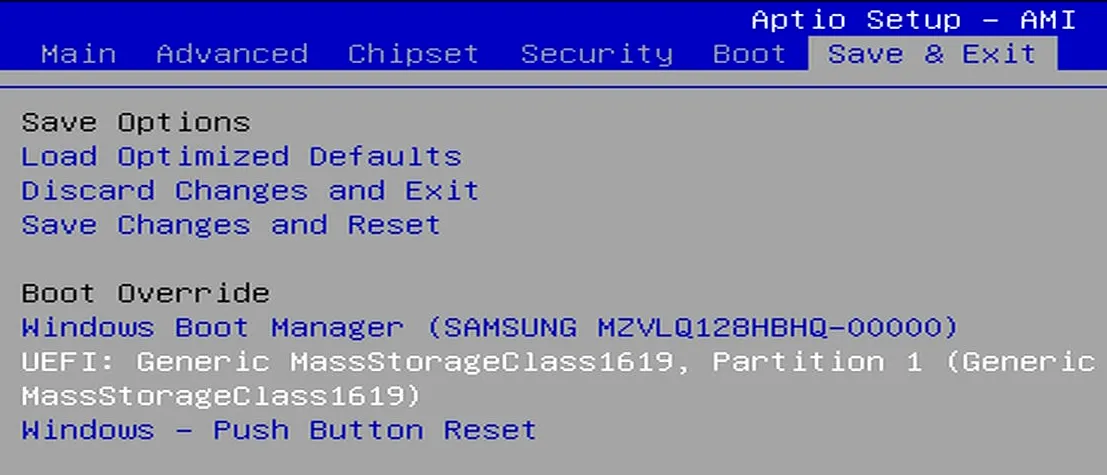
Plug the bootable USB drive into your LattePanda Mu Ultra (via the carrier board's USB port). Power on the device and continuously press the Del key to enter the BIOS settings. Navigate to the boot menu and configure the system to boot from the USB drive.
-
Install the Operating System
Follow the on-screen instructions provided by the Linux installer to partition your M.2 SSD and complete the OS installation.
-
Post-Installation & Driver Updates
After the installation is complete, if you find that certain peripherals (such as Wi-Fi, Bluetooth, or audio) are not functioning properly, it is usually due to missing drivers in the default kernel.
- Update the System: Run a full system update to fetch the latest packages.
- Upgrade the Kernel: If issues persist, try upgrading to a newer Linux kernel (e.g., Kernel 6.11 or later), which often includes better support for newer hardware.
- Install Proprietary Drivers: Some components may require proprietary drivers. Check your distribution's "Additional Drivers" utility.
Intel GPU Compute Driver
Linux's default graphics drivers are only responsible for display output and do not include GPU compute libraries (OpenCL / Level Zero).
If you plan to run large language models locally (such as OpenVINO, llama.cpp) or perform other general-purpose GPU computing (such as PyTorch XPU or AI video processing), you need to install the official Intel compute runtime.